Settings & Administration Guide
The Settings page (/settings) is where you manage your workspace, team, security policies, billing, and data configuration.
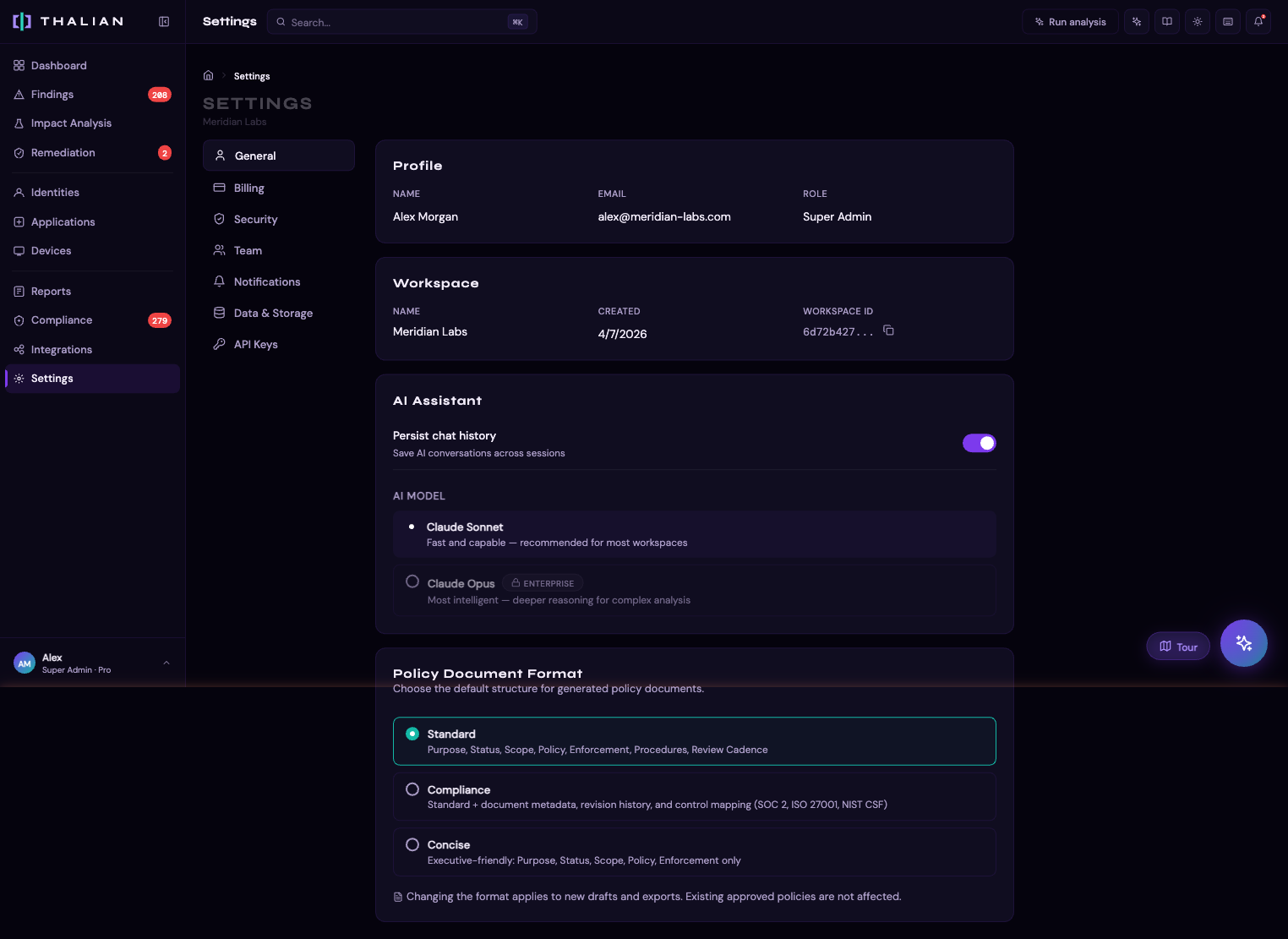
Tabs
General
- Workspace name: Rename your workspace
- AI engine: Configure the AI analysis engine preferences
- Agentic remediation policies: Configure which remediation actions can execute automatically vs. require manual approval. Three tiers: auto_execute, auto_queue, never
Billing
- Current plan: Shows your active plan (Free, Pro, or Enterprise) with usage metrics
- Upgrade/downgrade: Manage your subscription via Stripe
- Plan comparison:
| Feature | Free | Pro | Enterprise |
|---|---|---|---|
| Identities | 25 | 500 | Unlimited |
| Integrations | 3 | Unlimited | Unlimited |
| Data retention | 7 days | 1 year | Unlimited |
| AI queries/day | 25 | 100 | Unlimited |
| Auto-remediation | No | Yes | Yes |
| Causality analysis | No | Yes | Yes |
| Access reviews | No | Yes | Yes |
| SSO/SAML | No | No | Yes |
- Trial: New workspaces get 30 days of Pro features. After expiration (+ 7-day grace period), the workspace downgrades to Free and excess integrations are paused
Security
Security settings that affect all workspace members:
- MFA enforcement: When enabled, all members must enroll TOTP-based MFA before accessing the dashboard. Members without a verified factor are blocked until they complete enrollment
- Session timeout: Choose how long sessions remain active before requiring re-authentication: 1 hour, 4 hours, 8 hours, 24 hours, or 72 hours
- IP allowlist: Restrict API access to specific IP addresses or CIDR ranges. When enabled, requests from non-allowed IPs are rejected
Team
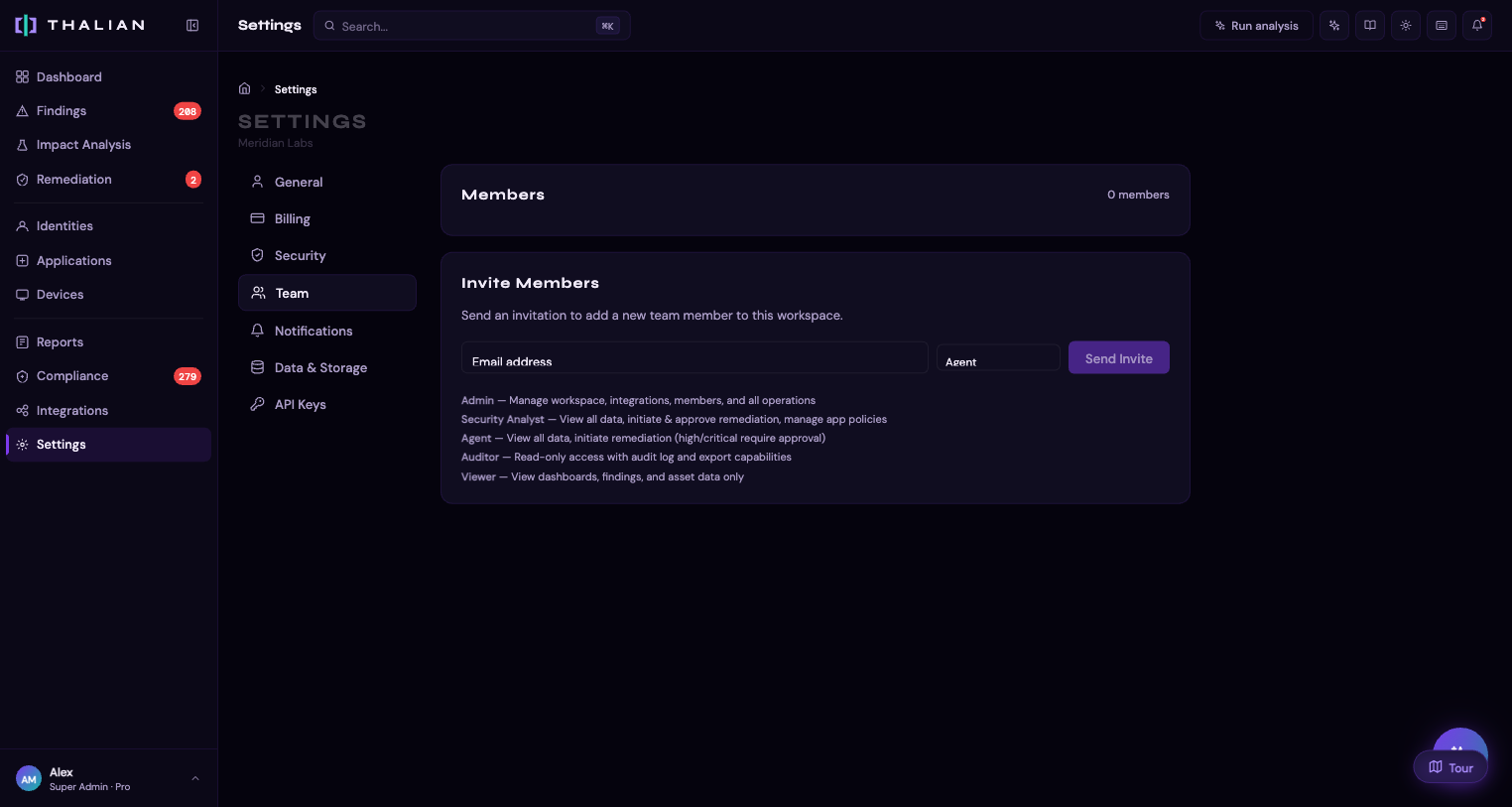
Manage workspace members and their roles:
Inviting members: 1. Enter the email address of the person you want to invite 2. Select a role (Admin, Security Analyst, Agent, Auditor, or Viewer) 3. Click "Invite" — they'll receive an email with a join link 4. Super Admin is not available in the invitation flow
Role permissions:
| Permission | Super Admin | Admin | Security | Agent | Auditor | Viewer |
|---|---|---|---|---|---|---|
| View dashboard, findings, assets | Yes | Yes | Yes | Yes | Yes | Yes |
| Initiate remediation | Yes | Yes | Yes | Yes | — | — |
| Approve remediation | Yes | Yes | Yes | — | — | — |
| Manage app policies | Yes | Yes | Yes | — | — | — |
| Manage integrations | Yes | Yes | — | — | — | — |
| Manage team members | Yes | Yes | — | — | — | — |
| Manage workspace settings | Yes | Yes | — | — | — | — |
| View audit log & export | Yes | Yes | Yes | Yes | Yes | — |
Role management rules: - You can only assign roles ranked below your own - You can only modify or remove members ranked below your own - No one can elevate their own role
Managing members: - Change a member's role from the team list - Remove a member to revoke their workspace access - View pending invitations and revoke them if needed
Notifications
Configure how and when you receive notifications:
- Alert rules: Manage which integrations send alerts for new findings (configured per-integration on the Integrations page)
- Severity thresholds: Set minimum severity for alerts
Data & Storage
- Data retention: View your plan's retention period. Data older than the retention window is automatically cleaned up (except audit logs, which are kept indefinitely)
- Workspace export: Download a JSON blob of all workspace data (identities, applications, devices, findings, audit log)
- Delete workspace: Permanently delete the workspace and all associated data. For safety, this directs you to contact support@thalian.ai
API Keys
Create API keys to authenticate MCP-compatible AI assistants (Claude Code, Cursor, Windsurf, and others) against your workspace data. Go to Settings → API Keys to create, list, or revoke keys.
Keys are workspace-scoped. Read-only keys (the default) can query workspace data via all MCP tools. Write-scope keys are required for MCP action tools that modify workspace state and are recorded in the audit log on every mutating call. You can have up to 10 active keys per workspace. For setup instructions, see MCP Server.
Platform
Advanced platform configuration for workspace-level settings:
- Access: IP allowlisting and API access controls
- Automation: Webhook forwarding and automated workflow configuration
- Compliance: Compliance framework preferences and evidence export settings
Role-Based Access Summary
Different roles see different things in the UI:
- Viewers see dashboards, findings, and asset pages but cannot take any actions
- Auditors additionally see the audit log and can export data
- Agents can initiate remediation actions, but high/critical actions require approval from a Security Analyst or above
- Security Analysts can initiate and approve remediation, manage app policies (sanction, block, flag)
- Admins can additionally manage integrations, team members, and workspace settings
- Super Admins have full control including ownership transfer
The UI conditionally renders action buttons, settings panels, and management interfaces based on your role — you'll only see what you have permission to do.
For help with your workspace, see Getting Help.